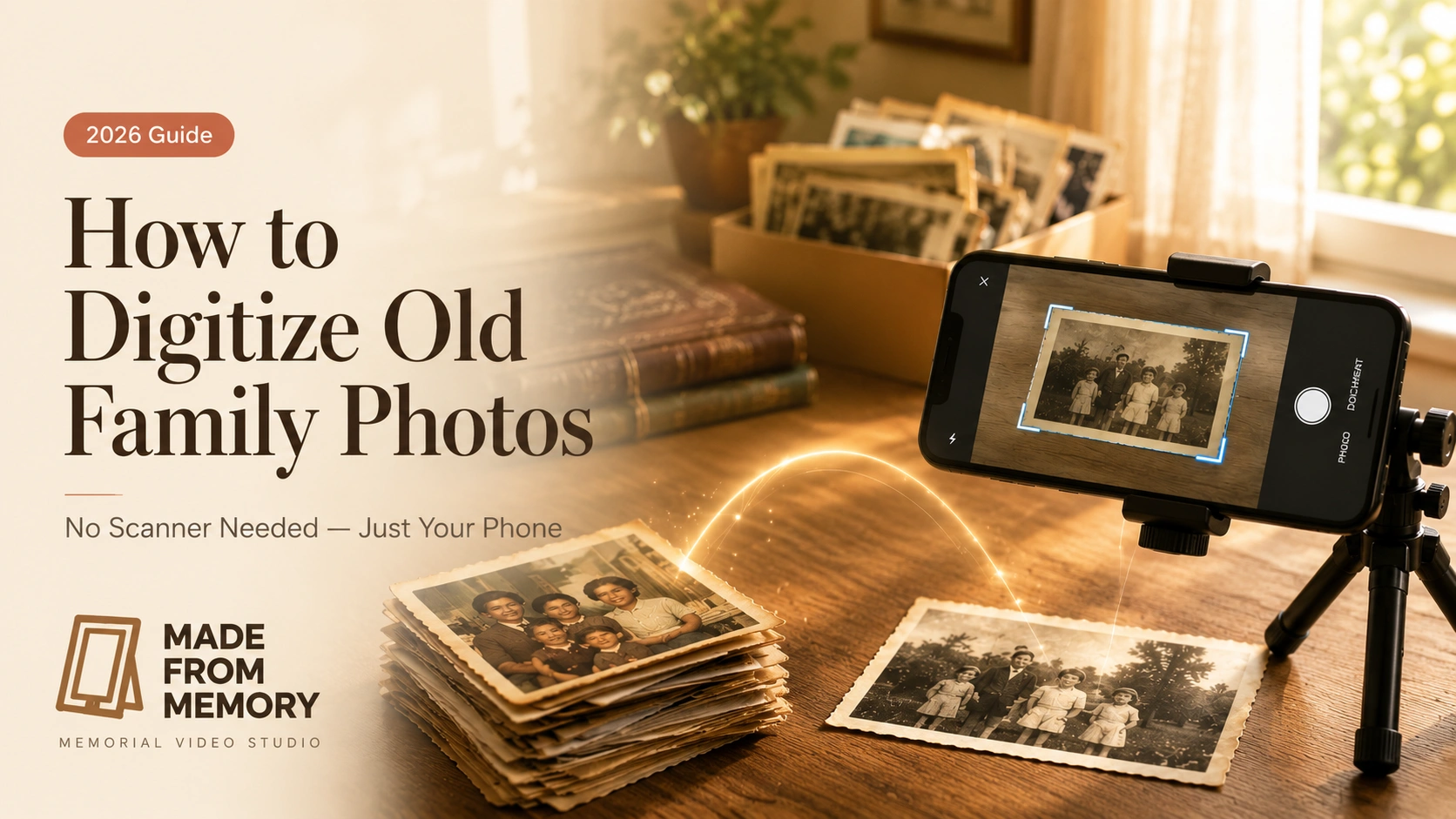
You can digitize old family photos in 2026 without buying a scanner by using your smartphone, a free photo scanning app (Google PhotoScan, Microsoft Lens, or Apple’s built-in Notes scanner all work well), a flat surface near a window with soft natural light, and a careful, batch-based process that protects fragile originals. The phone-based approach is free, fast, and (for the average family) produces results that are completely sufficient for sharing, printing, and long-term archival storage. The single most important step is not the equipment, but the labeling, backing up, and organization of the files once they are digitized.
This guide walks you through every step: choosing the right app for your phone, setting up an ideal scanning station at home, handling old and fragile photographs safely, scanning hundreds of images efficiently, fixing common problems, organizing your archive, and backing up your work so it survives for generations. We will also cover what to do with the images after digitizing (including gentle animation for tribute purposes) and when, if ever, you should consider paying for a professional service instead.
Why Most People Get This Wrong
Walk into any home with a box of old family photographs, and you will usually find one of two responses to the question of digitizing them.
The first is paralysis. The project feels too big. The photos are too fragile, the volume too overwhelming, the right equipment too expensive, the time required impossible to find. The box sits in the closet for another decade.
The second is over-engineering. The well-meaning family member researches scanners for weeks, buys a flatbed model for several hundred dollars, sets it up in a spare room, scans fifty photographs at high resolution, becomes exhausted, and never returns to the project.
There is a third path, and it is the one this guide is built around. You already own the only piece of equipment you need: a smartphone with a decent camera. Combined with a free app and a small amount of consistent attention, your phone can digitize an entire family archive in a series of unhurried afternoons. No scanner. No subscription. No specialty equipment. Just the device in your pocket and a steady, patient approach.
This is not a compromise. For 99% of family photo digitization, phone-based scanning produces results that are visually indistinguishable from a flatbed scanner at normal viewing sizes. The professional archivists at major institutions still use specialized equipment for museum-grade work. Your family does not need museum-grade work. Your family needs the photographs to exist in digital form, labeled, backed up, and findable, so that the stories they hold can survive the next moves, hard drive failures, and generations.
A Word Before You Begin: Handle With Care
Before you scan a single photograph, a quiet reminder. The originals you are about to touch may be the only physical version of these images that has ever existed. Some are sixty or eighty years old. Some are the only photograph anyone ever took of a beloved relative.
A few principles for handling old photographs.
Wash and dry your hands before each session. The oils on human fingers are invisible but corrosive over time. For very precious or fragile photographs, lightweight cotton gloves (available cheaply online) are worth using.
Hold photographs by the edges, not the surface. The image side is more vulnerable than people think.
Do not try to clean photographs aggressively. A very soft brush (camera lens brushes work well) can remove loose dust. Do not use cleaning fluids, water, or rubbing on the image surface.
Never pull photographs out of old albums by force. Many old albums used acidic adhesives that have bonded with the photograph backing. If a photo resists, leave it. Scan it through the album page, or get professional help.
Keep food, drinks, and pets away from the work area. Most catastrophic photograph damage happens during well-meaning sorting sessions, not from time itself.
Approach the work the way a librarian approaches an old book: with patience, both hands, and the awareness that what is in your care cannot be replaced.
Equipment You Already Own (And the Few Small Things to Add)
Here is the complete list of what you need to digitize old family photos with your phone.
A smartphone with a working camera (any model from the last five to seven years is more than capable).
A free scanning app (we will discuss the best options below).
A flat, well-lit surface (a kitchen table near a window is ideal).
A neutral, dark background (a piece of black or dark gray construction paper works well, but a plain table surface is also fine for many photos).
Optional but helpful: a small notebook or note-taking app for labeling as you scan.
Optional for fragile photos: cotton gloves (under $10 online).
Optional for very old or curled photos: a few small, smooth glass or plexiglass weights to gently flatten the corners (a clean drinking glass on each corner works in a pinch).
Optional for higher quality: a small phone tripod (under $20) so you can position your phone at a perfect right angle to the photograph.
Total cost: approximately zero to thirty dollars, depending on which optional items you add.
The Best Free Apps to Digitize Old Family Photos in 2026
There are three apps we recommend, all free, all genuinely good. Each has its own strengths.
Google PhotoScan (iOS and Android)
This is the most popular free photo scanning app, and for good reason. PhotoScan uses a clever multi-shot technique: you place your phone over a photograph, the app shows four dots, and you move the phone to capture each dot in sequence. The app then automatically combines the captures into a single image that has glare and reflections digitally removed.
For old, glossy photographs (especially anything from the 1960s through the 1990s, when glossy finishes were common) the glare removal feature alone makes PhotoScan worth using. The app also detects edges, crops automatically, corrects perspective if your phone was slightly tilted, and saves the result to your phone’s photo library or directly to Google Photos.
Strengths: glare removal, automatic edge detection, very easy to use, completely free.
Weaknesses: the multi-shot technique is slower than a single-shot scan, and the final resolution is lower than a flatbed scanner would produce.
Microsoft Lens (iOS and Android)
Originally designed for document scanning, Microsoft Lens has quietly become an excellent photo scanning option. It is fast, single-shot, and produces clean results. The app detects the photograph’s edges and crops automatically, then offers a “photo mode” that preserves color and contrast more accurately than the default document mode.
Strengths: very fast for high-volume scanning, good color accuracy, integrates well with OneDrive for automatic backup.
Weaknesses: less effective at removing glare than PhotoScan, so works best with matte or older photographs.
Apple’s Built-in Notes or Files Scanner (iOS only)
Many iPhone users do not realize their phone has a built-in scanner. Open the Notes app, tap the camera icon, choose “Scan Documents,” and your iPhone becomes a competent photograph scanner. The same scanner is available in the Files app.
Strengths: nothing to download, fast, integrates directly with iCloud.
Weaknesses: slightly less polished for photos than dedicated apps, and not available on Android.
Our Recommendation
For most families, we suggest Google PhotoScan as the primary tool, with Microsoft Lens as a backup for very large batches. Use PhotoScan for any photograph with glossy finish or visible reflections, and use Lens for large batches of matte photographs where speed matters more than glare removal.
How to Set Up the Ideal Phone Scanning Station at Home
The single biggest factor in scan quality (more than the app, more than the phone model) is lighting. Get this right and even an older smartphone produces excellent results. Get it wrong and the best phone in the world cannot save you.
Here is the setup that consistently produces the best results.
Choose a Spot Near a Window
Natural daylight is your best friend. Find a table near a north-facing window if possible (the light is softer and more even). South-facing windows work too, but you may need to scan in the morning or late afternoon to avoid harsh direct sun. Avoid scanning in direct sunlight: it creates hot spots and color shifts.
Avoid Overhead Lighting
Turn off any direct overhead lights. They cause reflections, especially on glossy photographs. Wall lamps or indirect ambient light is fine, but the main light source should be the window.
Use a Neutral Background
Place a piece of dark gray or black paper, or a clean piece of dark fabric, under each photograph. This gives the scanning app a clear edge to detect and prevents the surrounding table surface from leaking into the scan.
Position Your Phone Carefully
Hold your phone (or mount it on a small tripod) directly above the photograph, parallel to the surface. The app will correct for small angles, but starting with a clean perpendicular position improves results significantly. If your phone has a wide and a standard lens, use the standard lens. Wide-angle lenses introduce slight edge distortion.
Keep the Photograph Flat
Curled photographs scan poorly. For lightly curled photos, gently weight the corners with small smooth objects (clean drinking glasses or small books work). For severely curled photographs, do not force them flat: this can crack the emulsion. Scan as best you can and consider professional restoration if the damage is significant.
Work in Batches
Set up the station once. Sort five to ten photographs at a time. Scan them in sequence. Take the next five. The setup is the time-consuming part. Once you are scanning, the rhythm becomes meditative.
Step-by-Step: How to Digitize Old Family Photos Using Your Phone
Here is the complete process from start to finish.
Step 1: Sort First, Scan Second
Before you scan anything, sort your photographs into rough groups. This can be by decade, by family branch, by event, or by person. The exact system matters less than the act of sorting itself. Photographs scanned in random order are very difficult to organize later. Photographs scanned in batches of related images are nearly self-organizing.
Use small sticky notes or paper dividers to mark each batch. Keep a notebook open to write down any information you uncover as you sort: dates, names, places, events. This information is gold. It is also the most easily lost.
Step 2: Open Your Chosen Scanning App
Open Google PhotoScan (or your chosen app). Allow it access to your camera and photo library if it asks. Make sure your phone is fully charged or plugged in: a full session can drain a battery.
Step 3: Position the Photograph
Place a single photograph on the dark background, near your window. Make sure the photo is flat and not in direct sunlight or hard shadow. Hover your phone directly above, parallel to the photograph, with the full photograph clearly framed in the camera view.
Step 4: Capture the Scan
In PhotoScan, the app will show a center circle and four dots. Position the circle over the center of the photograph, then move your phone slowly so the circle moves to each of the four dots in turn. The app will capture an image at each position and combine them.
In Microsoft Lens, simply tap the shutter once. The app will detect the photograph’s edges and capture a single image.
Step 5: Review the Result
Both apps will show you the scanned image immediately. Check three things: are the edges of the photograph correctly detected? Is the image sharp and in focus? Are colors true to the original?
If the result looks wrong, just rescan. There is no penalty for rescanning. Many photographs benefit from two or three attempts before you find the right angle and lighting.
Step 6: Save and Move On
Save the scan. Most apps will let you save to your phone’s photo library, to a cloud account, or both. Move to the next photograph. Repeat.
A reasonable pace is around thirty to fifty photographs per session, with a session lasting forty-five minutes to an hour. Trying to do too many in one sitting leads to mistakes and abandoned projects.
Step 7: Label Immediately (Or Within a Few Days)
This is the step almost everyone skips, and the one that most determines whether the archive is actually useful in ten years. Each scanned photograph needs, at minimum, a name and a year. If you know the location and event, even better.
You can label in two ways. The faster way is to simply rename the file in your computer’s file system after transferring (something like “1978_summer_grandpa_birthday.jpg”). The slower but more powerful way is to add the information to the file’s metadata or to a tagging system inside your photo library app.
Whichever you choose, do not let a stack of unlabeled scans grow. Label as you go, or within a few days. After a month of “I’ll get to it later,” you will not.
Special Cases: Photographs That Need Extra Care
Not all photographs scan equally easily. Here are the most common challenges and how to handle them.
Photographs Stuck in Magnetic Albums
Magnetic photo albums (popular from the 1960s through the 1990s) use a sticky backing under a clear plastic overlay. Over the decades, the adhesive often bonds with the photograph itself, making removal risky. Do not pull these photos out by force.
Instead, scan them through the clear overlay. Most scanning apps handle this surprisingly well. If glare is severe, try removing the overlay carefully (often it lifts off as a sheet) and scan with just the adhesive backing visible. If a photograph is truly stuck, consider professional removal at a photo restoration service.
Polaroid and Instant Film Photographs
Polaroids scan reasonably well, but they are particularly vulnerable to light damage and pressure. Scan them quickly, keep them out of direct light, and store the originals in a dark, dry place. Polaroids with visible fading or color shifts can sometimes be partially restored digitally, but the original chemical degradation cannot be reversed.
Photographs Behind Glass in Frames
Do not remove old photographs from frames if they appear stuck to the glass. This is more common than people realize, especially with older portraits. Scan through the glass if possible (use a window angle that avoids reflections) or photograph from slightly off-axis and correct in the app.
Slides and Negatives
Phone scanning works for prints. It does not work well for slides or negatives, which require backlighting. For slides and negatives, you have two practical options. First, hold each slide or negative up to a bright (but diffuse) light source like a tablet displaying a plain white screen, and photograph it with your phone. The results are passable but not great. Second, use a small slide and negative scanner (under fifty dollars) or a professional conversion service. For most families with significant slide collections, the professional service is worth the cost.
Very Old or Severely Damaged Photographs
For photographs from before the 1940s, especially those showing significant fading, tears, or water damage, your phone scan is just the starting point. The digital file can then be professionally restored, either through editing software or by a restoration service. Importantly, even a damaged photograph should be scanned: the digital file is far easier to work with than the original, and the original can then be safely stored without further handling.
For families considering the next step (gentle animation of these treasured restored photographs into respectful, motion-based tributes) our piece on the art of animating old photographs walks through how this works without overstating what is possible.
Organizing Your Digital Archive (The Step Almost No One Does Well)
You have scanned hundreds of photographs. Now what?
This is where most family digitization projects collapse. The scans get dumped into a folder called “Photos” or “From Mom’s house,” and within a year, the archive is nearly as hard to navigate as the original boxes were.
The principles of a good digital archive are simple, but they have to be followed consistently.
Pick One Folder Structure and Use It Forever
The two most useful structures are: by decade and year (“1970s > 1972 > Christmas”) or by person and event (“Grandma > Birthdays > 1972 Christmas”). Pick one. Use it for everything. Do not mix systems.
Use Consistent File Names
Renaming files matters. A file called “IMG_4283.jpg” tells you nothing in ten years. A file called “1972_christmas_grandma_kitchen.jpg” tells the future everything it needs. The standard format is: year_event_people_location.jpg.
This is tedious, but it is also one-and-done work. Once a file is renamed, it stays useful forever.
Add Metadata Where You Can
Most modern photo apps (Apple Photos, Google Photos, Adobe Lightroom) allow you to add tags, keywords, location data, and dates to each photograph. This metadata travels with the file and makes future searches much faster. Even basic tagging (just adding the year and the names of people in the photo) transforms the archive.
Back Up in Three Places
This is the archival standard: 3-2-1. Three copies, two different types of media, one off-site. For a family digital archive, this typically means: one copy on your main computer or hard drive, one copy in a cloud account (Google Photos, iCloud, Dropbox, or any reliable service), and one copy on an external hard drive stored at a relative’s home or in a safe deposit box.
The off-site copy is the one that saves your archive from fire, flood, or theft. It is also the one that most families skip. Do not skip it.
Share the Archive
A family archive that lives on one person’s drive is one accident away from being lost. Give a trusted relative access. Walk them through the folder structure. Tell them what to do if something happens to you.
What to Do With Your Digitized Photos Once They Are Saved
A digital archive that just sits in a folder is only half-alive. Once your photographs are digitized, organized, and backed up, consider what to do with them.
Print the best ones. Counterintuitively, the most important thing to do with a digital photograph is sometimes to print it back into the physical world. A printed family album, made from your digitized scans, is the gift that future generations will treasure most.
Share them with extended family. Set up a shared cloud album with siblings, cousins, and elders. Invite them to add their own photographs and contribute names and dates.
Use them for milestones. Birthdays, anniversaries, graduations, and memorials all become more meaningful when accompanied by photographs from earlier generations.
Create tribute films for loved ones. For families who have lost someone, a longer photographic tribute (built from digitized images, paired with music, and gently animated to bring stillness into motion) can become one of the most cherished family possessions. This is the work we are honored to do at Made From Memory, and our memorial video services page covers the process in detail.
Honor difficult memories with care. Some photographs (a parent in their last year of life, a sibling lost too young, a childhood home that no longer stands) carry weight that is hard to look at directly. Including these in a longer tribute, alongside lighter images, often makes them easier to hold. Our piece on why animated photos make meaningful gifts discusses this gently.
When You Might Consider a Professional Service Instead
Phone-based scanning is right for most families. There are a few situations where a professional service is worth considering.
You have more than two thousand photographs and limited time. At a certain volume, the math shifts. A professional bulk scanning service (Legacy Box, Scan My Photos, ScanCafe, or a local archival service) can process thousands of photographs in a few weeks for a few hundred dollars. Your time may be more valuable than the savings.
You have significant slide, negative, or film holdings. As mentioned, these formats are difficult to digitize at home with quality. A professional conversion service is usually worth the cost.
You have very fragile, damaged, or historically significant photographs. Items that may have museum or research value, or photographs in physically delicate condition, deserve professional handling.
You are short on time but high on resources. There is no shame in paying for help. The work that matters is that the archive exists. How it comes into being matters less than the fact of its existence.
Common Questions About Digitizing Family Photos Without a Scanner
Is phone scanning really as good as a flatbed scanner?
For most family use (sharing, printing at standard sizes, archival storage) yes. A modern smartphone with a good scanning app produces results that are visually indistinguishable from flatbed scans at normal viewing sizes. For museum-grade archival work, or for printing photographs larger than 16×20 inches, a high-resolution flatbed scanner still has the edge. For everyday family digitization, the phone is more than enough.
What resolution should my scans be?
Most phone scanning apps produce images in the range of 1500 to 3000 pixels on the long edge, which is more than sufficient for any family use including printing standard photo sizes. If you have the option to choose, “high quality” or “best quality” settings are worth using.
How long will my digital photos last?
A digital photograph, properly backed up in three locations, can last indefinitely. The medium degrades much less than the original print. The risk is not degradation but loss: hard drive failure, account closure, format obsolescence. The 3-2-1 backup rule addresses all three risks.
Can I digitize photographs in old albums without removing them?
Often yes. Scan through clear plastic overlays where present. For photos firmly stuck to album pages, scan the entire page as one image, then crop individual photos digitally afterward. Do not force photos out of albums: the damage is usually permanent.
Should I scan photographs in color or black and white?
Always scan in color, even if the original photograph is black and white. Color scans capture subtle tonal information that pure black and white scans lose. You can always convert a color scan to grayscale later. You cannot recover color from a grayscale scan.
How do I share scanned photos with family members who are not technical?
Cloud-based shared albums (through Google Photos, Apple iCloud, or similar services) are usually the easiest. For older relatives uncomfortable with apps, consider printing a small album of the best photographs and mailing it. The combination of a digital archive and a physical photo book is often the most accessible for an extended family.
What if I find photos of people I do not recognize?
Save them. Label them “unknown” with the approximate decade and any context you can guess. Send them to extended family members and ask. Even after one or two generations, with improving technology and broader records, it is possible some of these unknowns will be identified. Discarding unidentified photographs is the one mistake that cannot be undone.
What is the best way to share scanned photos with elderly relatives?
Print them. Most people over the age of seventy-five engage more meaningfully with printed photographs than with screens. A small, well-curated photo book mailed to a grandparent or great-aunt is often more treasured than any digital album, and it doubles as a backup copy of your most important scans.
Is it worth scanning photographs at very high resolution?
For everyday family photos, no. Standard resolution is fine. For a small handful of “hero” photographs (the wedding portrait, the only photo of a great-grandparent, the family photo from a milestone year) yes. Scan these at the highest resolution your app and phone allow, and consider professional scanning if you intend to print them at large sizes.
Can I use an AI app to “restore” damaged old photos?
Some AI restoration apps can do remarkable things with faded, scratched, or damaged photographs. They can also sometimes invent details that were not there, which is a real concern for archival use. Our recommendation: keep your original scan unmodified as the archival “master” file, and create a separate restored copy if you want one. Never overwrite the original scan with the restored version.
A Quiet Closing
Digitizing old family photographs is not glamorous work. It is repetitive. It is slow. It happens in unhurried afternoons over weeks and months, in the company of people who are no longer here.
But it is among the most quietly meaningful things a person can do for their family. The photographs you scan today will be the ones your grandchildren show their grandchildren. The labels you write will be the names that survive. The folder structure you build, however imperfect, will be the architecture of how your family remembers itself.
You do not need a scanner. You need a phone, a quiet hour, and the willingness to begin. The first ten photographs are the hardest. The next hundred follow more easily. The thousand after that become a kind of meditation.
If, after digitizing, you find yourself drawn toward a deeper form of tribute (a single photograph of a loved one gently animated into soft motion, or a longer film built from a lifetime of images) you are welcome to reach out to our team for a gentle conversation about what might suit your family. And if you are simply curious about what is possible, the Made From Memory portfolio may be a quiet next step.
The photographs in your closet are not waiting for the right time. They are waiting for you to begin.
Leave a Reply